Using Assist
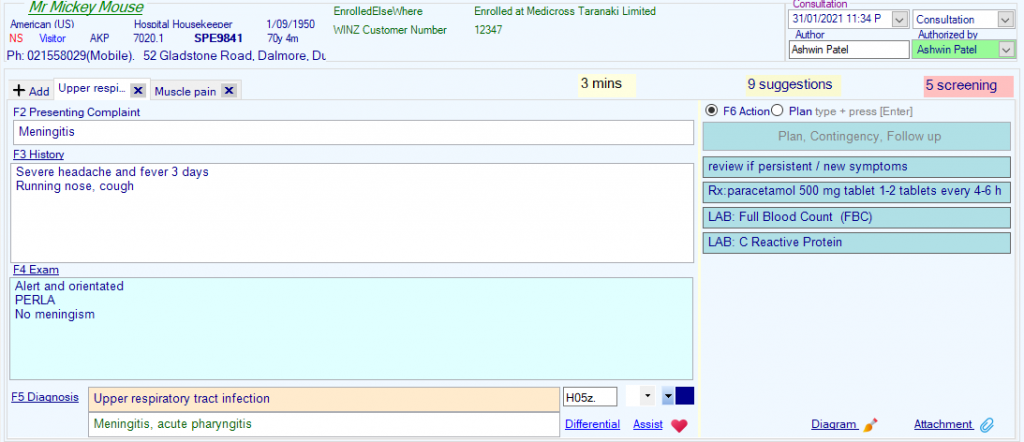
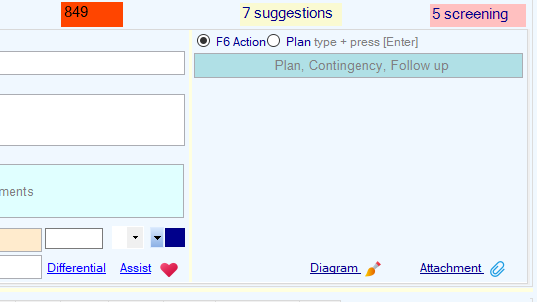
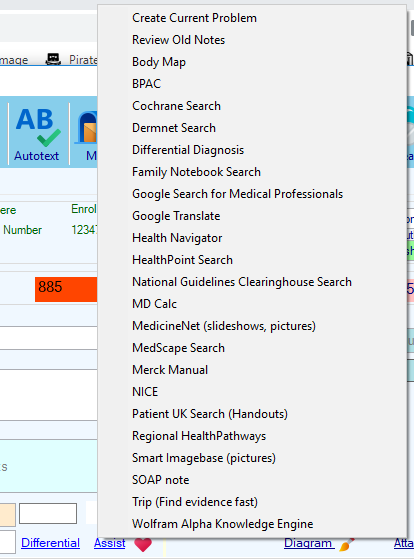
Click on Assist to see a list of websites that can help you make a diagnosis , get advice on treatment or educate your patient.
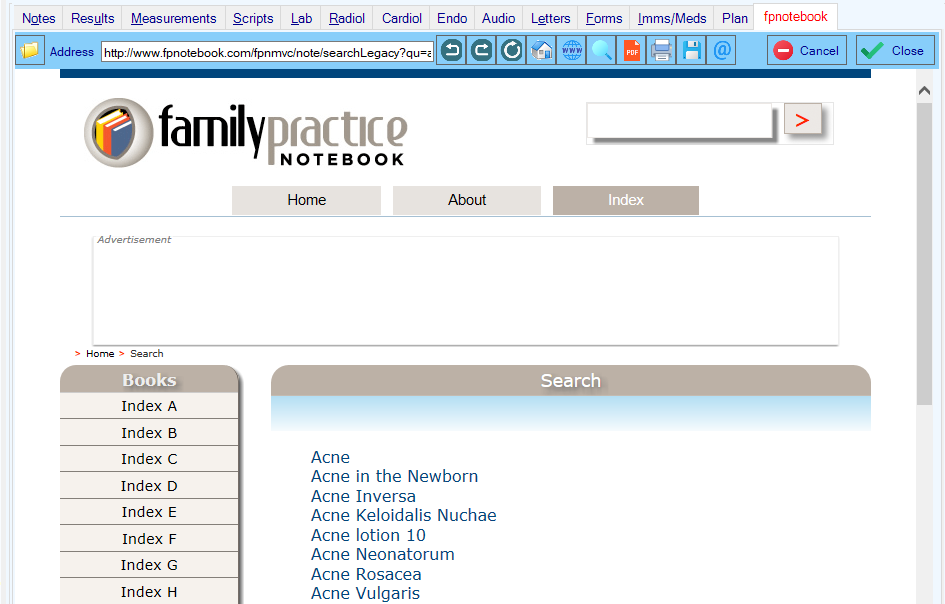
When you select a resource, it will open a website in a new tab.
The current diagnosis will be used to Search that website.
- These websites do not require subscriptions
- Click on the email button to send the website link to your patient
- Click on the Print button to print the website.
- Click on the PDF button to create a file of the webpage
- The Family Notebook provides up to date information in an easy to read note format
The Merck Manual provides comprehensive documentation - The Patient UK (NHS) provides great handouts for your patients
- The Smart Imagebase has pictures or videos on almost any condition
- MD Calc provides calculators and scoring templates
- Google Translate will find words in most languages
- Google search for Medical authorities – filters the sites professionally
Further sites are accessible in your resources list in the Forms Tab